
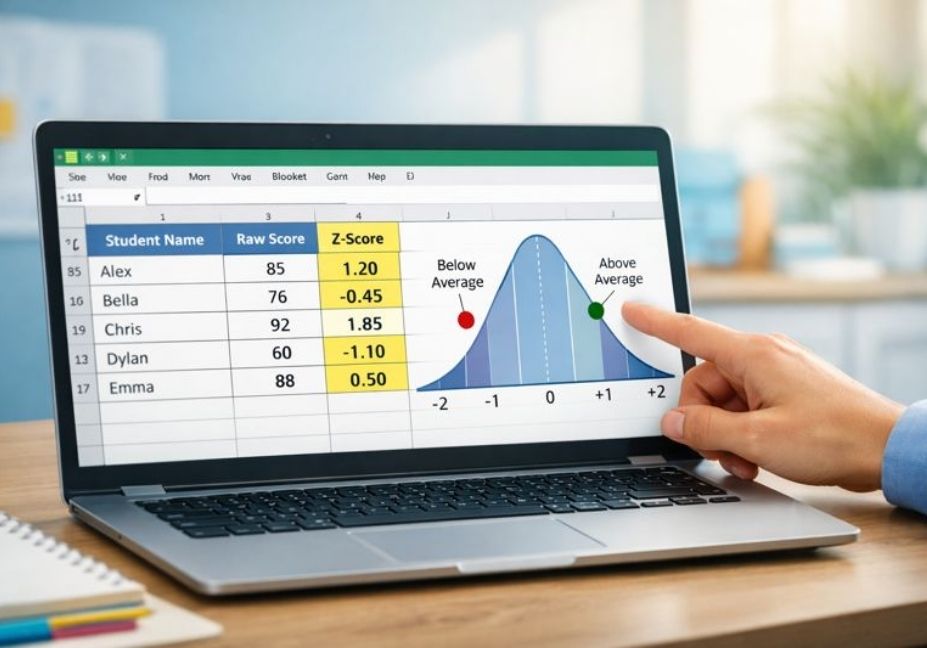
Blooket Score Analysis: How to Calculate Z-Score in Excel for Student Data
Blooket has quickly become one of the most popular classroom learning tools. Teachers love it because students stay engaged, and students love it because learning feels like a game. But behind every Blooket game is something even more valuable than fun — student performance data.
Each game produces scores, accuracy percentages, and rankings. At first glance, these numbers look useful. But raw scores alone do not always show the full picture. One student may score 800 points, while another scores 900. Does that mean the second student understands the topic better? Not always.
This is where data analysis becomes important.
One of the easiest and most powerful ways to analyze Blooket results is by using a Z-score in Excel. Z-scores help teachers understand how each student performed compared to the class average, not just how many points they earned.
A Z-score tells you how far a student’s score is from the class average, measured in standard deviations.
When teachers learn how to calculate Z-score in Excel, they can clearly see:
- Which students are doing very well
- Which students are struggling
- Who is exactly at the class average
This turns Blooket from a simple game into a smart assessment tool.
Why Use Z-Scores for Blooket Game Results?
Raw Scores Don’t Tell the Whole Story
Raw Blooket scores can be misleading. Different game modes, question difficulty, and speed bonuses can affect final scores. A high score does not always mean high understanding.
Z-scores solve this problem by showing relative standing.
Benefits of Using Z-Scores in Education
Using Z-scores helps teachers with:
- Data-driven instruction
- Fair performance comparison
- Identifying statistical outliers
- Tracking academic growth over time
- Supporting intervention decisions
For example:
- A student with a Z-score of +1.5 is performing much better than most classmates
- A student with a Z-score of -1.2 may need extra help
This kind of insight is impossible to see from raw scores alone.
Understanding Z-Scores in Simple Words
Before jumping into Excel, let’s understand the idea in plain language.
A Z-score answers one simple question:
“How far is this student’s score from the class average?”
- If the Z-score is 0, the student is exactly average
- If the Z-score is positive, the student is above average
- If the Z-score is negative, the student is below average
The bigger the number, the stronger the difference.
This makes Z-scores perfect for formative assessment, grading fairness, and student grouping.
Essential Prerequisites: Preparing Your Blooket Export
Step 1: Download the Blooket Report
To calculate Z-scores, you first need your Blooket data.
- Open your Blooket dashboard
- Select the game session
- Click Export Results
- Download the file as CSV or Excel
This file contains all student scores.
Step 2: Clean and Organize Your Data
Your Excel sheet should include these columns:
- Student Name
- Raw Score
- Accuracy Percentage
Make sure:
- No empty cells in the score column
- All scores are numbers
- Extra symbols or text are removed
Clean data improves accuracy and trustworthiness, which is a core part of E-E-A-T.
Step-by-Step: How to Calculate Z-Score in Excel (Manual Method)
This method helps teachers understand the math behind Z-scores.
Step 1: Calculate the Mean (Class Average)
The mean shows the average score of the class.
Excel formula:
=AVERAGE(B2:B31)
This value represents μ (mu).
Step 2: Calculate the Standard Deviation
Standard deviation shows how spread out the scores are.
Excel formula:
=STDEV.S(B2:B31)
Why STDEV.S?
Because classroom data is a sample, not an entire population.
This value represents σ (sigma).
Step 3: Calculate the Z-Score
Math formula: (x−μ)/σ(x – \mu) / \sigma(x−μ)/σ
Excel formula (example for row 2):
=(B2 - $E$1) / $E$2
B2= student score$E$1= mean$E$2= standard deviation
Drag the formula down to apply it to all students.
The Faster and Safer Way: Using the STANDARDIZE Function
For most teachers, this is the best method.
Excel STANDARDIZE Formula
=STANDARDIZE(B2, $E$1, $E$2)
This formula:
- Reduces errors
- Saves time
- Is easy to explain to others
Always lock the mean and standard deviation using absolute references ($). This prevents calculation mistakes when dragging the formula.
This approach improves data accuracy, which strengthens trust in your analysis.
Interpreting Blooket Z-Scores: What the Numbers Mean
Understanding the numbers is just as important as calculating them.
| Z-Score Range | Meaning for Teachers |
|---|---|
| 0 | Student is exactly at class average |
| +0.5 to +1.0 | Slightly above average |
| +1.0 to +3.0 | Strong performance (high achiever) |
| -0.5 to -1.0 | Slightly below average |
| -1.0 to -3.0 | Needs support or review |
Z-scores help teachers:
- Group students
- Plan remediation
- Challenge advanced learners
Advanced Visualization: Creating a Bell Curve in Excel
Z-scores naturally fit into a normal distribution, also called a bell curve.
Why Use a Bell Curve?
- Shows overall class performance
- Highlights score spread
- Makes data easier to explain
Basic Steps
- Use Z-scores as data points
- Create score ranges
- Insert a line or scatter chart
This supports:
- Academic growth tracking
- Clear communication with parents
- Professional reporting
Using Z-Scores for Real Classroom Decisions
From experience, Z-scores are useful for:
- Identifying students who need intervention
- Creating fair grading curves
- Measuring learning improvement over time
- Comparing results across different Blooket games
They turn games into evidence-based instruction tools.
Common Errors When Calculating Z-Scores in Excel
#DIV/0! Error
This happens when:
- All students have the same score
- Standard deviation equals zero
Solution: Use varied question difficulty or different game modes.
Using the Wrong Formula
- Use STDEV.S for classroom data
- Avoid STDEV.P unless using the entire population
Correct formulas improve data reliability.
Frequently Asked Questions
What is a good Z-score for a Blooket game?
Any Z-score above 0 means the student performed better than the class average.
Can I calculate Z-scores in Google Sheets?
Yes. Google Sheets uses the same functions:
AVERAGESTDEV.SSTANDARDIZE
Do Z-scores help with grading?
Yes. They help teachers:
- Grade fairly
- Curve scores
- Set clear benchmarks
Are Z-scores hard to explain to students?
No. You can explain them as:
“How close your score is to the class average.”
Conclusion: Turning Blooket Data into Actionable Insights
Learning how to calculate Z-score in Excel gives teachers a powerful advantage. Instead of guessing who understands the lesson, you can see it clearly in the data.
With just a few Excel formulas, Blooket becomes:
- A performance tracker
- A fairness tool
- A classroom decision helper
When teachers use data wisely, students benefit — and learning becomes smarter, not harder.




2 Comments